Computer Tips From A Computer Guy |

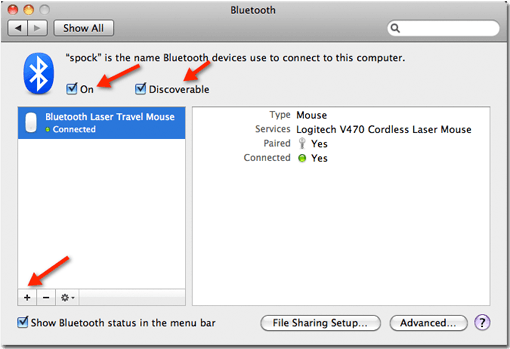
| Transfer Files from Blackberry to Mac via Bluetooth Posted: 05 Feb 2010 03:45 AM PST If you have to transfer a lot of files from your Blackberry to your Mac, it gets cumbersome to plug it in, browse for the files on the SD card, and copy them over. If both your Mac and your Blackberry are Bluetooth-enabled, you can transfer files quickly and easily without being tethered to your desk by a cable. 1. On the Mac, open System Preferences, and click on Bluetooth. Make sure that On and Discoverable are checked.
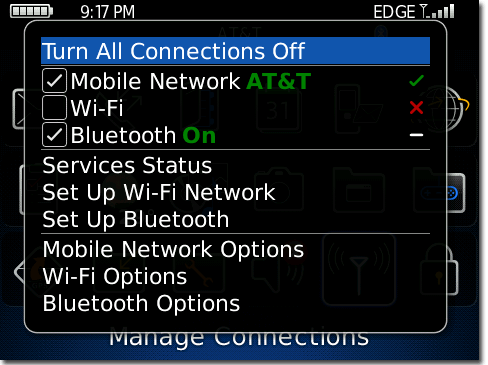
2. On the Blackberry, click on Manage Connections and click the checkbox next to Bluetooth On.
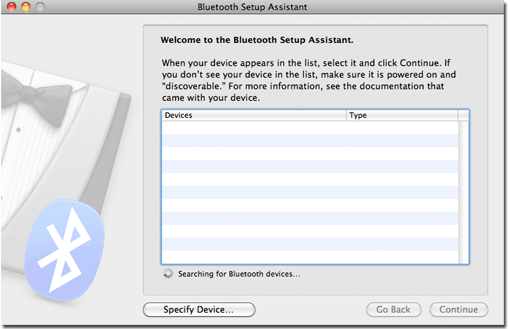
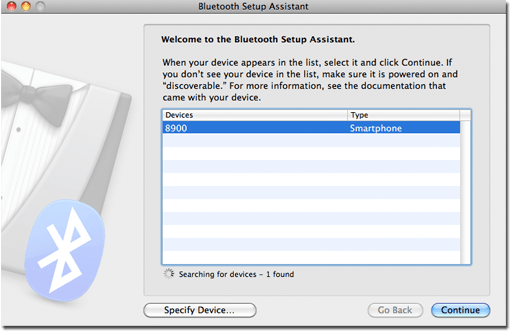
3. On the Mac, click on the plus mark in the lower left corner of the Bluetooth window. The Mac will begin Searching for Bluetooth devices using the Bluetooth Setup Assistant.
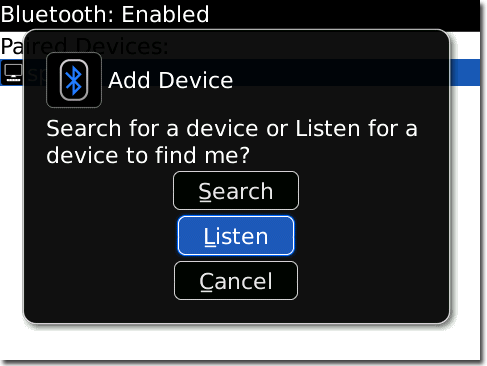
4. On the Blackberry click on Setup Bluetooth, and on the Add Device Screen choose Listen.
5. The Mac will discover the Blackberry and display it in the Bluetooth Setup Assistant window. Select the Blackberry from the list and click Continue.
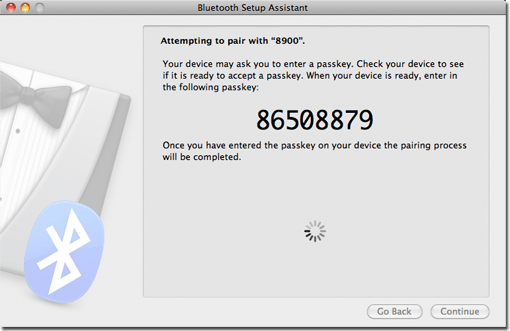
6. The Mac will display a numeric passkey that must be typed on the Blackberry.
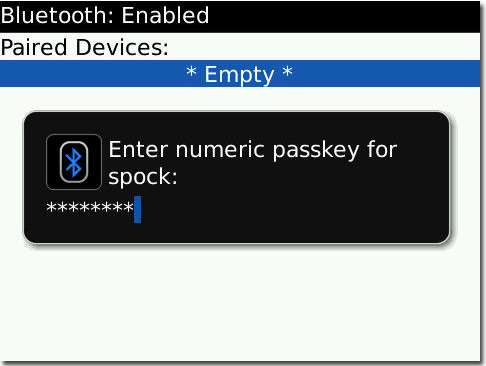
7. At the same time, the Blackberry will prompt you to enter the passkey.
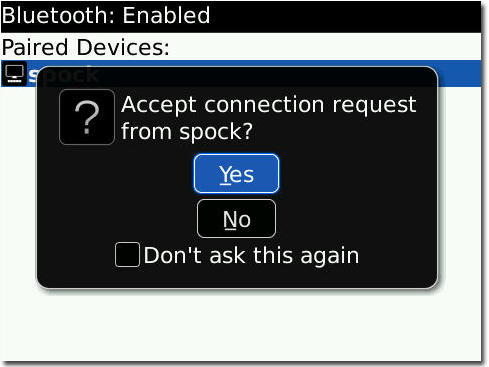
8. Once you’ve entered it, the Blackberry will ask you if you want to Accept connection request from the device (where “the device” is the name of the Mac). Click Yes.
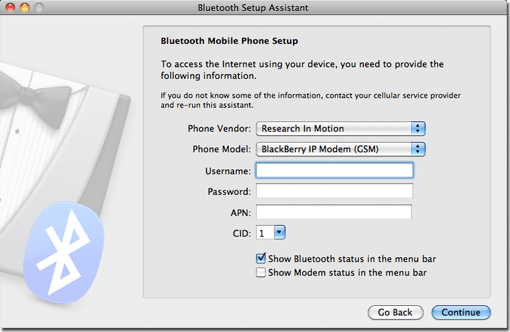
9. The Mac will display the Bluetooth Mobile Phone Setup window. Choose Research in Motion from the Phone Vendor menu, and choose Blackberry IP Modem from the Phone Model menu, and then click Continue. The Blackberry and the Mac are now paired.
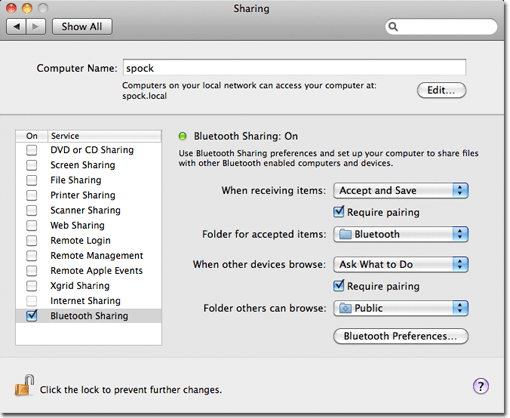
10. On the Bluetooth window, choose the Blackberry from the list and click on File Sharing Setup. 11. Click the checkbox next to Bluetooth Sharing. Choose Accept and Save from the drop-down menu next to When receiving items. Choose a Folder for accepted items. Click both checkboxes next to Require pairing, and leave the rest of the default settings.
Now you can send files from your Blackberry to the Mac via Bluetooth, and the Mac will automatically accept them and save them in a specific folder.
Related postsCopyright © 2007 Online Tech Tips. Aseem Kishore (digitalfingerprint: a59a56dce36427d83e23b501579944fcakmk1980 (74.125.158.82) ) Post from:
|
| You are subscribed to email updates from Online Tech Tips To stop receiving these emails, you may unsubscribe now. | Email delivery powered by Google |
| Google Inc., 20 West Kinzie, Chicago IL USA 60610 | |