Computer Tips From A Computer Guy |

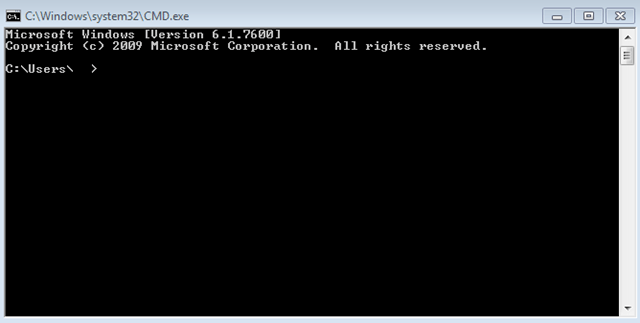
| Mac Equivalent of Task Manager, Command Prompt and Event Viewer Posted: 22 Jan 2010 03:13 AM PST Just make the switch from PC to Mac? Even the simplest tasks can seem confusing at first. In Windows, you can get a command prompt using the path Start > All Programs > Accessories > Run. From there, simply type CMD into the run text field and press enter. Very simple. With Mac OS X, you can get the UNIX Mac equivalent to a command prompt just as easily. Open up Finder and navigate the path Finder > Applications > Utilities. From within the utilities window, double click the terminal icon. This will open up the OS X Terminal, which is the Mac equivalent of a Command Prompt. Terminal will accept several different commands, just as Command Prompt will on a Windows machine. From Terminal, you can do just about anything on your Mac, as long as you know the right command. Simple, right? Now, let's try out a basic terminal command. With Terminal open, type the following: emacs Hit the enter button on your keyboard. Push the ESC + x keys on your keyboard at the same time. Type one of the following values and hit enter: 5×5 You should now have one of the above games running within Terminal. It's as easy as that. Now you know how to get a Command Prompt on your Mac computer. Windows computer's record all technical data and computer activity using an application called Event Viewer. You can use Event Viewer to view logs of all errors that take place within Windows. To get to Event Viewer, type event viewer into the search box of the start menu, and click the Event Viewer listing from the search results. The Mac equivalent of Event Viewer is Console. Console is a utility that will allow you to view various activities on your computer and find system errors. To use Console, start by opening up Finder. Navigate the path: Finder > Applications > Utilities. From within the Utilities window, double click the Console icon. Another utility that is used quite often in Windows is the Task Manager. Most people are familiar with the Windows Task Manager as doing the "CTRL, ALT, DELETE". When in doubt, CTRL, ALT DELETE!!. Task Manager allows you to monitor, check, and force quit all running processes and application on a Windows computer. The Mac OS X equivalent of Task Manager is a utility called Activity Monitor. Basically, Activity Monitor does the same stuff that Task Manager does. You can view running processes and applications, force quit things, view network activity, memory usage, etc… To get to the Mac OS X Activity Monitor, use the path: Finder > Applications > Utilities. From within the Utilities window, double click the Activity Monitor icon. There you have it. That is how you use Mac OS X's equivalents of Window's Command Prompt, Event Viewer, and Task Manager.
Related postsCopyright © 2007 Online Tech Tips. Aseem Kishore (digitalfingerprint: a59a56dce36427d83e23b501579944fcakmk1980 (74.125.44.136) ) Post from: 
       |



| You are subscribed to email updates from Online Tech Tips To stop receiving these emails, you may unsubscribe now. | Email delivery powered by Google |
| Google Inc., 20 West Kinzie, Chicago IL USA 60610 | |

