Computer Tips From A Computer Guy |

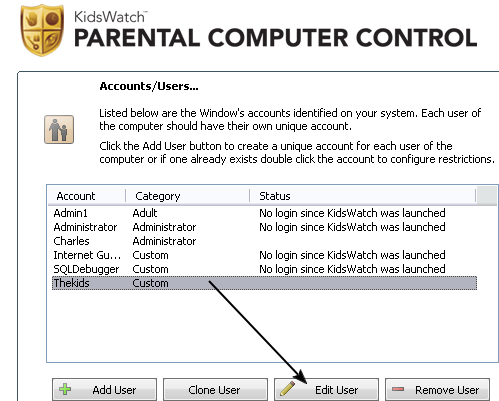
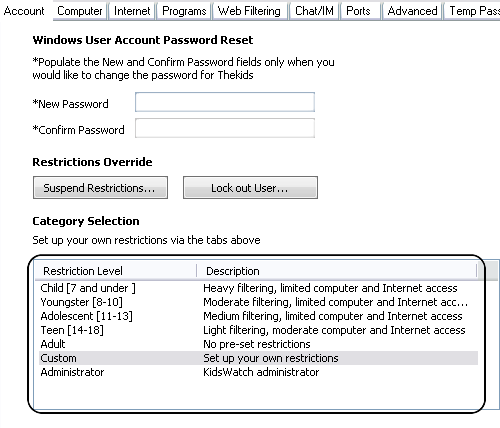
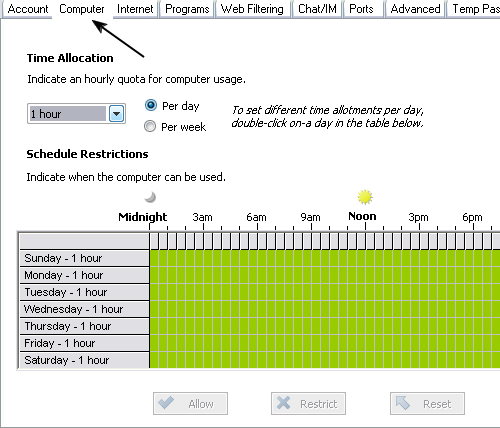
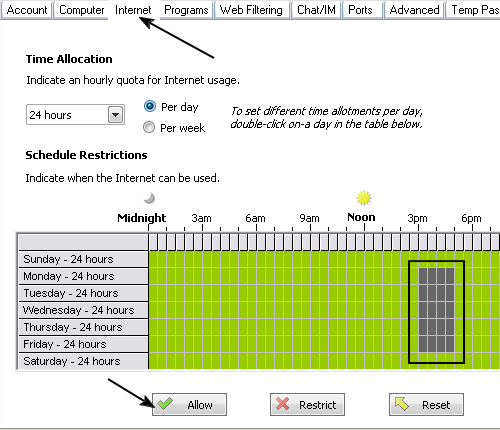
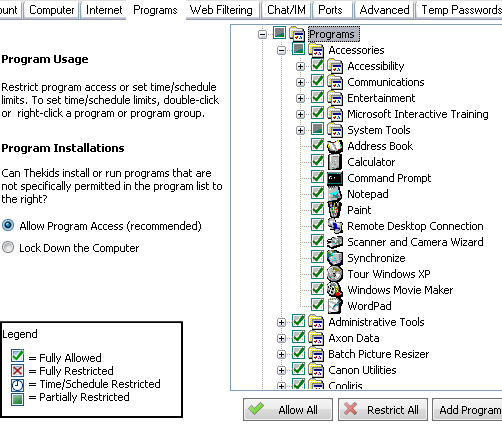
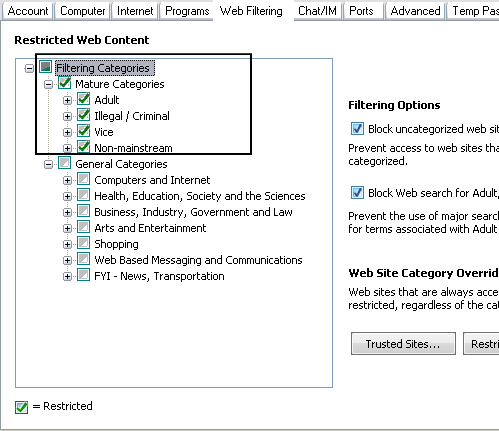
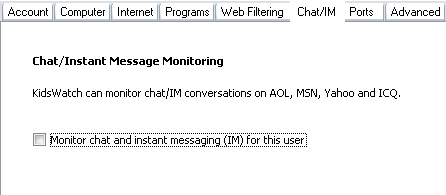
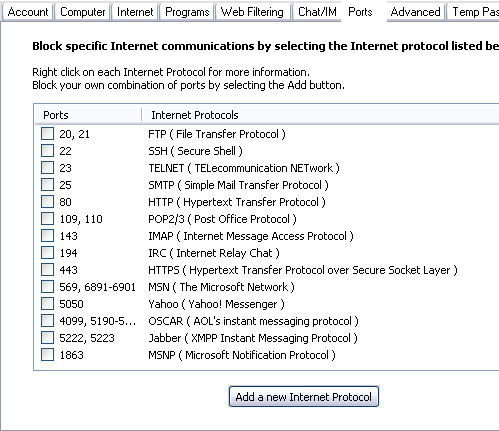
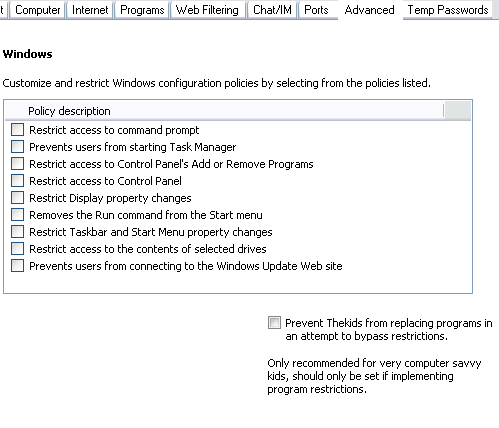
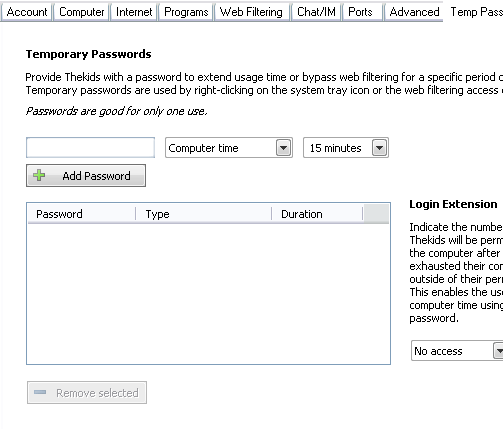
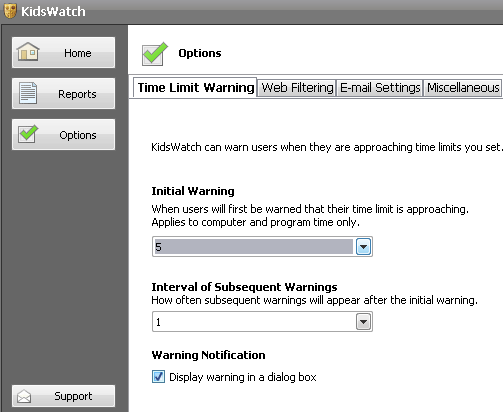
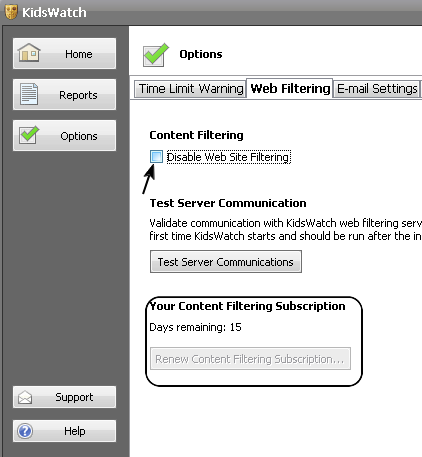
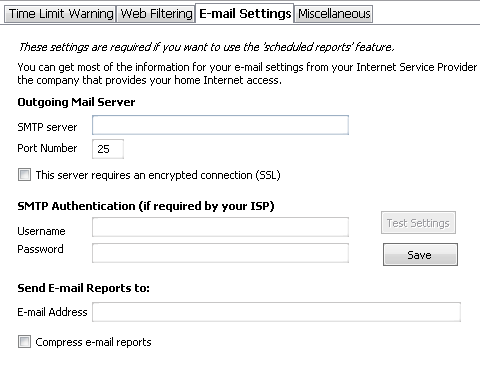
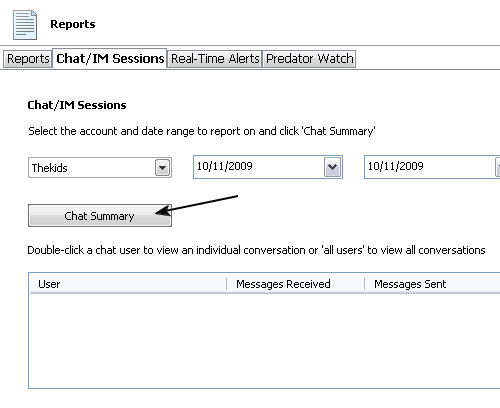
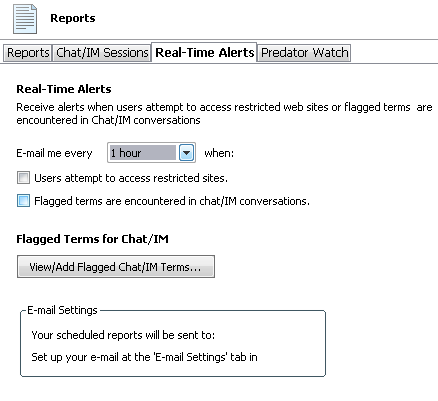
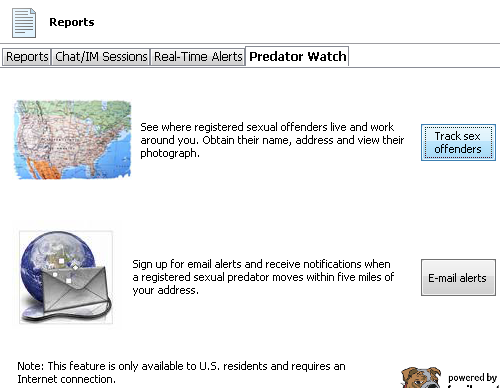
| Kids Watch – Keep kids safe while on the Internet Posted: 14 Oct 2009 03:12 AM PDT When it comes to the safety of children, one does not have to go to great lengths to convince people of how important it is to shield kids from harm. Sex offender registries, safety information for parents, safe school zones, and many other measures are in place to keep children safe. However, one area that has been a pitfall in recent years, has been Internet safety. With greater access to the Internet than ever before, more steps must be taken to keep kids safe online. Parents can teach their kids when to let them know if something strange is happening, or if they get directed to website they did not intend to enter. Even though there is more information on how parents can limit and monitor Internet access for their children, having some helpful tools to bolster this effort never hurts. One of these tools is KidsWatch Parental Computer Control (found here). While other Internet monitoring software leans more towards general web filtering, KidsWatch does filtering, and more. With KidsWatch, you can, to name a few, lock down the Windows Control Panel, password protect the program’s settings, and use template based web restrictions based on age groupings. When using KidsWatch, it does help to have separate accounts for your children. It makes it easier to let them have a different Windows account, so you can assign specific restrictions with KidsWatch. You can began editing their access by pulling up the main screen of the KidsWatch graphical console. Choose one of the Windows accounts from the main screen, then click on Edit User. When modifying user access via KidsWatch, there are many choices for restrictions available. If you should need to change their Windows User account password, you can do that in the Account tab. Here you can also choose from a pre-built, template list of restrictions. Each restriction set has a select age range and a descriptive entry describing the strength of the content filtering. You also have the option of following along with the tab choices at the top, and creating more customized account restrictions. The next two tab sections restrict the target account’s access time for computer use and Internet use. Both of them allow you to alter the allowable time on a daily or weekly basis. The first tab, Computer, covers the target account’s use of computer resources, not just the Internet. The subsequent tab, Internet, governs the time restrictions on access to the Internet itself. This is not filtering, but curtailing Internet use across the board, and limiting Internet availability by pre-selecting time slots. The limiting functions are similar for the Computer and Internet tabs. In this example, we have restricted the other account’s use of the Internet to 3 PM to 5PM, on Monday through Thursday. In the next tab section, Programs, you can restrict what currently installed programs, including Windows programs, the target account can or cannot use. With this list, you may allow all, none, or some. Furthermore, you can also setup time restrictions on the programs, akin to the Computer and Internet tabs, by double-clicking on the program entry. Moving further to the right, in the tabs list, we come upon the Web Filtering tab. This section’s default setting is to have Mature Categories selected. Each main category, has several selectable sub-categories of filtering. Each sub-category has a further break out list of what they cover. If you have ever dealt with web filtering technology, you may have encountered legitimate websites being flagged as inappropriate, blocked, etc. This is one area that you may want to test periodically to make sure it works to your liking. The Chat and Instant Messaging tab is pretty self-explanatory. This section just covers the activating, or deactivating, of the Chat and instant Messaging monitor. The actual data collection area will be covered later, as it is in a different section of the KidsWatch program. In the Ports tab, the average person may bypass this one altogether. Not everyone knows why these ports are used; unless you are familiar with these ports and protocols. At least some of them have descriptions next to them in order to assist the use in understanding what certain ports are used for. This type of functionality is similar to a firewall, except does not distinguish between inbound and outbound connections, just wether the port is active or not. The Advanced tab covers some of the internal workings of the Windows operating system. Here is where you can stop access to the Control Panel and other Windows functionality, such as the Run command, and the Task manager. Letting a child wander about the Control Panel could become problematic, and thankfully it is easy to turn it off in this section. If for some reason, your children continually run into problems with legitimate websites that are being blocked, and they have a good reason for accessing information on the blocked websites, you can issue them a temporary password to bypass certain restrictions mechanisms. Each password is good for one session, and a new one has to be issued when the other one expires. This password will permit the use of extended Computer or Internet time, going through the web filter, or granting access to otherwise unusable programs on their account. When you have completed your list in this account, you can click on Ok to commit your changes. Now you have an account established with the restrictions you want. However, there is another couple of areas, which may need attention. If you head back to the main screen of the program, you will notice an Options button on the left-hand side of the screen. Within this Options section, you can setup the warnings that let the other accounts know when they are short on time. You can also setup how often reminders are transmitted as well as whether or not to show the warning on screen. Should you feel the need, you can turn off the website filtering in this location from within this screen. To the right of the Web Filtering tab, you will notice the Email Settings tab. Here is where you can assign an email address to receive KidsWatch reports. These reports cover items like Internet messaging, and website visits. You will need your email server information to make this service work correctly. Should you want to get information out of KidsWatch, you may want to visit the reports section. To get to this location, click on the Reports button located between Home and Options. The first three tabs under Reports cover the data gleaned from KidsWatch. The last tab is a specialty function dealing specifically with sex offenders. The first tab in Reports gives you ability to generate scheduled reports. It is fairly straightforward. The second tab however, is more specific in nature. Here you can get a date range breakout of chatting history for a particular account. If an account was using a chat service within the time period you selected, it will appear in the lower text box. You can then view the interactions that account had with other people. The next section, Real-Time Alerts allows KidsWatch to send notifications to a predetermined email address. This covers any attempts to get into web sites covered by your previously selected restriction criteria, as well as words you can set to be flagged in chat conversations. If you allow chat services to run, you may want to test the responsiveness of the terms you put in to be flagged. Last but not least, the Predator Watch area of KidsWatch is specifically for parental usage. Here you can locate sex offenders (via a website) by clicking on the “Track Sex Offenders” button. You may be surprised at the results. Additionally, you may sign up for email based alerts should registered sex offenders be relocated to your town, zip code, etc. To say that KidsWatch has a variety of options would be an understatement. This is the type of utility that parents need to keep their children safe on the Internet. While this does not replace talking to your kids about the benefits and perils of Internet use, it helps in the absence of parental authority.
Related postsCopyright © 2007 Online Tech Tips. Aseem Kishore (digitalfingerprint: a59a56dce36427d83e23b501579944fcakmk1980 (74.125.44.136) ) Post from: 
       |
| You are subscribed to email updates from Online Tech Tips To stop receiving these emails, you may unsubscribe now. | Email delivery powered by Google |
| Google Inc., 20 West Kinzie, Chicago IL USA 60610 | |

