Computer Tips From A Computer Guy |
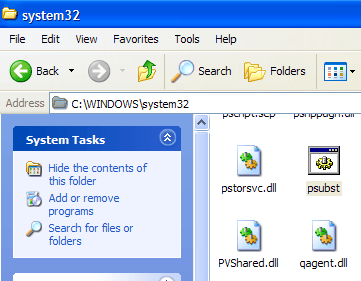
| Create persistent substituted drives (subst) in Windows Posted: 16 Jun 2009 03:50 AM PDT Ever create a substituted drive in Windows before? If not, the SUBST command in Windows allows you to map a long path, such as C:\Documents and Settings\username\Local Settings\Application Data\Microsoft\Outlook to a drive letter like Z:. Whenever you click on the Z drive in My Computer, you will actually be pointing to the long folder path I mentioned above. Pretty sweet eh! This can be very useful on many occasions, especially when working with paths that are long than 256 characters. So what's the problem with using the SUBST command? It's not persistent! That means when you restart the computer, your drive is gone. You have to create it again and you can't have any startup program try to access the substituted drive since it'll disappear. psubst is a nifty little program that you can use to create persistent substituted drive in Windows that will remain even after restarting. Creating a persistent virtual drive in Windows using pstub is very easy. Firstly, download and extract the executable file. Go ahead and drop the file into your C:\Windows\System32 folder so that you can run it from anywhere at the command prompt. Once in place, go to the command prompt (Start, Run, CMD) and start creating virtual drives. The syntax for using psubst is as follows: Create a disk: psubst drive1: drive2:path Delete a disk: psubst drive1: /D List of existing disks: psubst This will use the standard subst command to create virtual drives. If you wan to create a persistent one, just the /P argument as shown: Create a persistent virtual drive: psubst drive1: drive2:path /P Delete a persistent virtual drive: psubst drive1: /D /P So to create a persistent virtual hard drive (Z) to the Outlook data folder I mentioned above, I would issue the following command:
Now your new drive will show up as a local disk in My Computer: When you restart your computer, your drive will still be there. Not only that, but you can have other programs, such as services, etc, access the virtual drive even before Windows fully starts up because they drive will be available. So check out psubst if you have certain long file paths that you access often and want easier access to! Enjoy!
Related postsCopyright © 2007 Online Tech Tips. Aseem Kishore (digitalfingerprint: a59a56dce36427d83e23b501579944fcakmk1980 (74.125.44.136) ) Post from: Create persistent substituted drives (subst) in Windows
       |


| You are subscribed to email updates from Online Tech Tips To stop receiving these emails, you may unsubscribe now. | Email delivery powered by Google |
Inbox too full?  | |
| Google Inc., 20 West Kinzie, Chicago IL USA 60610 | |

